How to Send Automatic Google Forms Confirmation Emails with Apps Script (Free Guide)
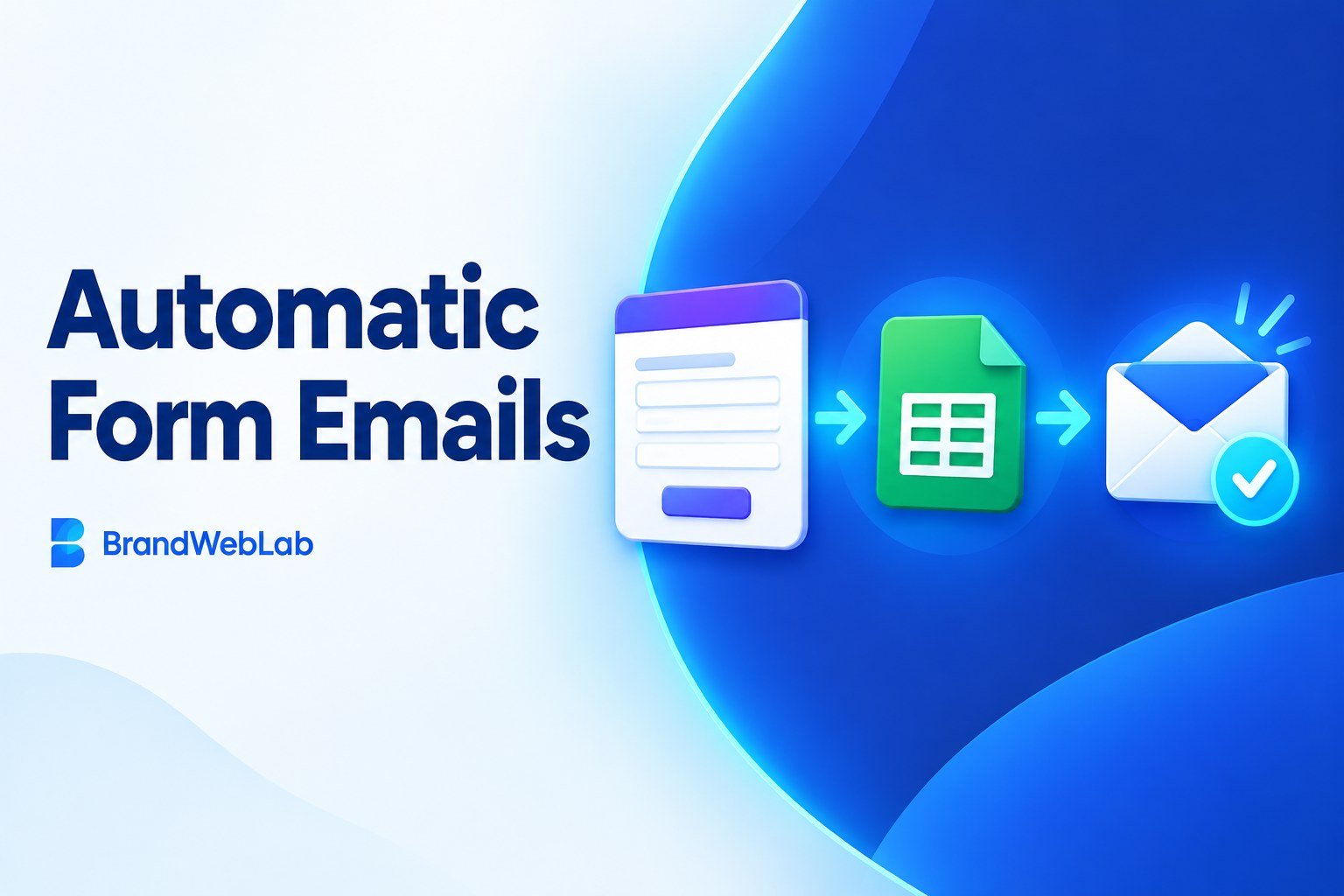
You can send an automatic, personalized confirmation email whenever someone submits your Google Form. You need a linked Google Sheet, a short Google Apps Script function, and an installable “On form submit” trigger. The setup is free with a Google account, and you don’t need Zapier or a paid plugin. This guide walks you through each step and includes code you can copy and paste.
What This Automation Does
When a person submits your form, the script reads their name and email address from the response. It then sends a short message such as “Hello Maria, we received your message.” This reassures customers and leads that their enquiry arrived.
Google Forms already has a built-in option to send respondents a copy of their responses. You can turn it on under the form’s Settings → Responses when you collect email addresses. That receipt only repeats the person’s answers back to them.
A custom acknowledgement email is different. You write the wording, greet the person by name, and can explain what happens next, such as reply times or opening hours.
Prerequisites
- A Google account (free Gmail or Google Workspace).
- A Google Form with two required short-answer questions labeled exactly Name and Email.
- Permission from respondents to contact them. The form itself should make it clear that a confirmation email will follow.
Step-by-Step Setup
- Open your form and go to the Responses tab.
- Click Link to Sheets, create a new spreadsheet, and open it.
- In the Sheet, choose Extensions → Apps Script.
- Delete the placeholder code, paste the script below, and click Save.
- In the left sidebar, click Triggers (the clock icon), then Add Trigger.
- Set the function to sendConfirmation, the event source to From spreadsheet, and the event type to On form submit.
- Click Save and authorize the permissions Google requests. You may see an “unverified app” screen for your own script. Review it, then continue only if you wrote or trust the code.
Google’s installable triggers documentation explains how this trigger type works.
Apps Script Code
This script uses the MailApp service. It also checks that the email address contains “@” before sending anything.
function sendConfirmation(e) {
  const values = (e && e.namedValues) ? e.namedValues : {};
  const recipient = (values['Email']?.[0] || '').trim();
  const name = (values['Name']?.[0] || 'there').trim();

  if (recipient.indexOf('@') === -1) {
    console.log('No valid email address found. Skipping.');
    return;
  }

  const body = 'Hello ' + name + ',\n\n' +
    'Thank you for contacting us. We received your message ' +
    'and will review your enquiry as soon as we can.\n\n' +
    'Best regards,\nYour Business Name';

  MailApp.sendEmail(recipient, 'We received your message', body);
}
Important: the keys 'Email' and 'Name' must match your form question labels exactly, including capitals and spacing. If your question says “Your email address,” change the key in the script to match it.
Want friendlier wording? ChatGPT can help you rewrite the template message or explain an error. Still, Apps Script sends the email, not ChatGPT. For more wording help, see our guide to using ChatGPT for small business website copy.
Test Your Confirmation Email
Do not click Run on sendConfirmation in the editor. A manual run has no form event, so e will be empty and the script will simply skip sending.
Instead, open the live form and submit a response using your own email address. Within a minute or two, check that inbox, including the spam folder.
Common Problems
If the form isn’t saving responses where you expect, Google’s Google Forms help page covers response destinations.
Limits and Privacy
- Emails send from the Google account of the person who created the trigger. Use a business account if you want replies to go to a business inbox.
- Apps Script has daily email quotas. They are lower for free consumer accounts than for Workspace accounts. Check Google’s current quota page if you expect high volume.
- No subscription is needed for this basic setup. Your account’s quotas still apply.
- Only email people who expect a confirmation. Unexpected messages can be marked as spam and hurt your sender reputation.
- Don’t include sensitive personal data in the email body. A short acknowledgement is enough.
Final Thoughts
With one linked Sheet, a short script, and a single trigger, your Google Form can thank every respondent personally, for free. As a next step, refine the wording of your message so it sounds like your brand.